Windows Autopatch dramatically reduces the operational burden of keeping Windows devices up to date—but when something goes wrong, visibility can still feel like a black box. Especially if you’re in the middle of migrating from patching devices with Configuration Manager (WSUS/GPO) to Windows Autopatch (Intune). There are a lot of places where things can go sideways with very little of it being obvious when trying to troubleshoot why devices aren’t patching.
Windows Autopatch abstracts much of update management for you—rings, policies, and scheduling are largely handled under the hood. That’s great for scale, but it also introduces common questions when you’re troubleshooting on an individual device:
- Is the device properly enrolled in Autopatch?
- Is it assigned to an update ring?
- Is there some wonky ConfigMgr/WSUS holdover stuck in the registry?
- Are there event log failures related to Windows updates?
- How can I quickly prove Autopatch is “working” on a particular device?
While the Intune admin center portal does contain a lot of this information, it’s spread across multiple blades and doesn’t always give you the details you need—and definitely not when you need them if that time is right now.
That’s where Get‑AutopatchHealth.ps1 comes in. This PowerShell script provides a consolidated view of Windows Autopatch health by querying Autopatch‑related data and presenting it in a way that’s useful for day‑to‑day operations, troubleshooting, and reporting.
🔗 Project repository:
https://github.com/jeffgilb/Get-AutopatchHealth/blob/main/Get-AutopatchHealth.ps1
🔗 For the visual learners out there: see me talk about it live here on ViaMonstra Academy OFFICE HOURS:
What Get‑AutopatchHealth.ps1 Does
At its core, Get‑AutopatchHealth.ps1 is a health discovery and reporting script for Windows Autopatch.
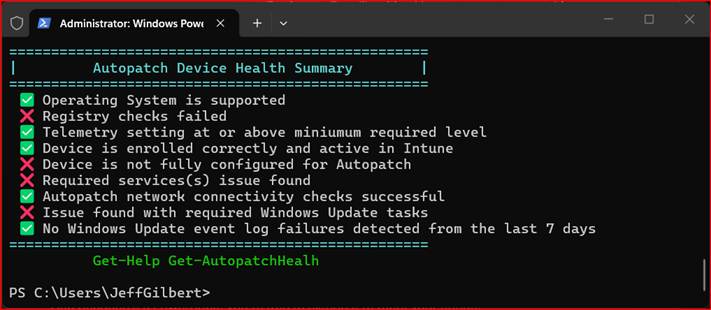
The script is designed to query Autopatch‑related configuration and state to retrieve health and status signals tied to Autopatch management. The script will continue to evolve (review the Read Me for the most current checks), but at a high level, the following are checked on a device when the script is run (either directly or as a remediation from Intune):
- General configuration health support. Checks for supported OS servicing branch, Autopatch-blocking or WSUS-redirecting values, device telemetry level configuration, Intune enrollment & activity, co-management workloads (if applicable), and the update policy authority for the device.
- Autopatch service health. Are Windows Update–related services are configured for patching success?
- Network endpoint connectivity. Confirms reachability of required Microsoft/Autopatch network endpoints. By default, the script runs against non-EU required endpoints, but there is a switch to check for EU endpoints.
- Scheduled task. Validates scheduled tasks required for Windows updates are configured properly.
- Windows Update event log checks. The script scans for known update-related issues within the last 7 days (number of days to check is configurable)
Parameters
You can customize how the script behaves using the available parameters described next.
-Remediation
Use this to test the script’s behavior as an Intune remediation (detection-only mode output formatting and logging behavior).
.\Get-AutopatchHealth.ps1 -Remediation
Remediation mode logging:
- Writes transcript to:
C:\ProgramData\Microsoft\IntuneManagementExtension\Logs\IR_AutopatchHealth.log - If failures are detected, the transcript is retained/renamed as:
IR_AutopatchHealth_ERR.log in a CMTrace friendly format. - If later runs succeed, the ERR log is deleted after 14 days to clean up the IME logs directory…so you have two weeks to grab that log before it’s gone.
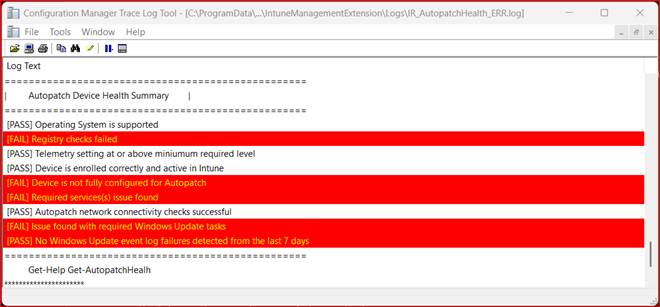
Why output formatting changes in Remediation mode:
The script contains a helper that avoids Unicode symbols because they will not render in the Intune admin center remediation output.
You can run this script as an Intune Remediation detection script only. It’s not meant to actually change or ‘fix’ anything. Doing that would just mask the symptoms of whatever GPO/policy is breaking Autopatch. Use the data the script returns to fix the core issue instead.
-EU
Includes EU Data Boundary endpoints during network checks.[learn.microsoft.com]
.\Get-AutopatchHealth.ps1 -EU
-Report
Creates a transcript and generates an HTML report at the end of execution, then opens it in the default browser.
.\Get-AutopatchHealth.ps1 -Report
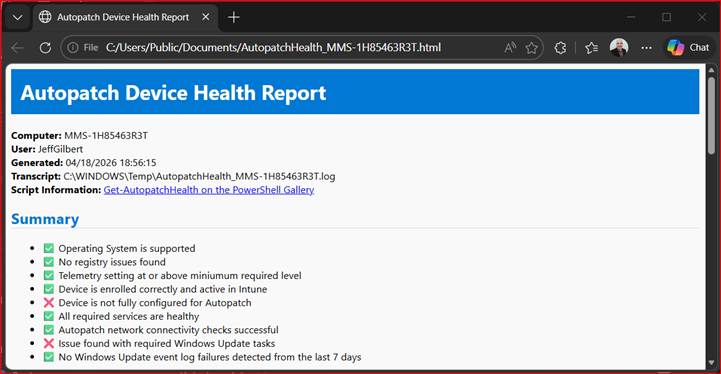
Report artifacts:
- Transcript: %WINDIR%\Temp\AutopatchHealth_<COMPUTERNAME>.log
- HTML report: C:\Users\Public\Documents\AutopatchHealth_<COMPUTERNAME>.html
“Force mode” options (editing the script)
Inside the script there is a READ ME section showing how to hard-code flags by uncommenting lines to force:
- $Remediation = $true
- $EU = $true
- $Report = $true
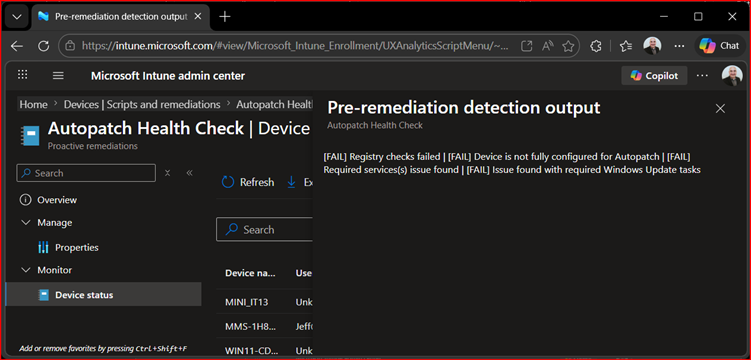
If you’re going to run the script as a remediation in Intune, be sure to hard-code the -Remediation parameter (remove the # to un-comment it) in the script’s Read Me section first. The script will output the [PASS] or [FAIL] detection output in the Intune admin center. If there are multiple failures, you’ll see them separated by a | (Intune admin center didn’t like the `n for a newline). You can collect device diagnostic logs if you need more information to troubleshoot any issues that were detected.
If your Intune/Autopatch tenant is located in the EU, you’re going to want to hard code the -EU parameter to be sure you’re checking the EU Autopatch listener network endpoint.
How It Fits into an Intune / Autopatch Toolkit
Rather than replacing the Autopatch service reporting, the script surfaces the data you usually have to hunt for, and it does it right now. Instead of manually piecing together Autopatch health from several UI locations, you can retrieve a clear snapshot in seconds. And because it’s PowerShell, you’re free to extend it to meet your needs.
Typical Use Cases
Get‑AutopatchHealth.ps1 is especially useful in the following situations:
- ✅ New Autopatch tenant device onboarding validation
- ✅ Post‑change verification (policy, enrollment, identity changes)
- ✅ Update incident investigation
- ✅ Operational reporting via Intune remediation
- ✅ Environment audits and health checks
Get‑AutopatchHealth.ps1 complements—not replaces—existing tools:
| Tool | Role |
| Intune Admin Center | Configuration and policy management |
| Intune Autopatch Reports | High‑level compliance reporting |
| Get‑AutopatchHealth.ps1 | Fast, scriptable device health visibility |
Together, they form a complete Autopatch operational model.
Final Thoughts
Windows Autopatch removes a huge amount of complexity—but observability still matters.
Get‑AutopatchHealth.ps1 gives administrators a fast, repeatable way to answer the most important question:
“Is this Autopatch device healthy right now?”
If you manage Windows updates at scale, this script is a valuable addition to your operational toolkit.
