One of the most common (and most confusing) troubleshooting scenarios for Intune administrators is Windows Update behavior that doesn’t match what Intune shows in the Intune admin center. Updates scan against the wrong service, policies appear to “flip back,” or Autopatch status looks healthy while devices behave as if WSUS is still in charge.
If all of this feels a little tangled, don’t worry (because it is). Here’s how I’ll try to break it down:
- The registry location used by WSUS
- How Windows Autopatch configures devices
- Where Intune device update policies actually land
- Common gotchas and tips to avoid them
The Three Worlds of Windows Update Policy
When you’re pondering the mysteries of Windows Updates, especially when migrating from Configuration Manager (WSUS) to Windows Autopatch (or just Intune update rings for that matter), it’s important to understand that things are never as straightforward as they might seem. Instead, it’s more like the three headed dragon/alien thing from the Godzilla movies.
OK I couldn’t remember the monster’s name so I’ve edited this post to include a Wikipedia shoutout to King Ghidorah.
And just like Ghidorah’s three heads, Windows Update settings can come from three different management models:
- WSUS (Group Policy or Configuration Manager)
- CSP-based policy (Intune & Autopatch)
- The PolicyManager abstraction layer (what Windows actually enforces)
Understanding how these three overlap is critical. In a lot of cases, the root cause comes down to which registry locations are being written to, and by whom.
For the purposes of the remainder of this post, Intune is Autopatch; Autopatch is Intune. Whether you’re defining update rings yourself in Intune or letting Autopatch do it’s thing, it’s mostly all the same on the backend.
1. WSUS: The Legacy Group Policy Registry Location
Primary Registry Paths
- HKLM\SOFTWARE\Policies\Microsoft\Windows\WindowsUpdate
- HKLM\SOFTWARE\Policies\Microsoft\Windows\WindowsUpdate\AU
Common Values
- WUServer
- WUStatusServer
- UseWUServer
- AUOptions
These keys are written by Group Policy. Either your friendly neighborhood on-premises AD Domain Controller or local GPO (aka Configuration Manager). These settings persist until actively removed, even if the device is registered and supposed to be updated by Autopatch. Pay special attention to UseWUServer. When UseWUServer=1 is set, the Windows Update Agent is forced to use WSUS.
If a device was ever domain‑joined or received WSUS GPOs, those registry values may remain indefinitely and silently override Intune policies. So, if you know you’re supposed to be all Autopatch, all the time and see those WSUS registry locations still present, just delete them. Save yourself some headaches down the road.
2. Intune & Autopatch: CSP-Based Policy Registry Locations
Autopatch writes the latest Policy Configuration Service Providers (CSP) – Update values it receives for the update policy settings you’ve created and assigned to the device in the MDM policy CSP paths. Places like the PolicyState location:
HKLM\SOFTWARE\Microsoft\WindowsUpdate\UpdatePolicy\PolicyState
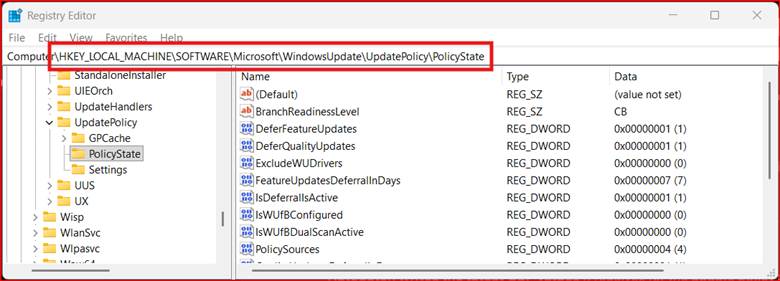
Those policy values are handy to see what settings are trickling down from Autopatch based on policy changes you’re making, but the real enforcement location that’s authoritative for update behavior is in the PolicyManager keys:
HKLM\SOFTWARE\Microsoft\PolicyManager\current\device\Update
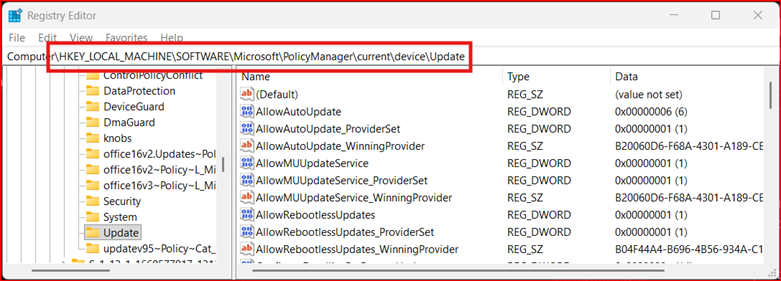
You may also see this additional location that stores raw input from one possible policy source provider (sync’d MDM policy) that will be considered by PolicyManager when it does its thing:
HKLM\SOFTWARE\Microsoft\PolicyManager\providers\<GUID>\device\Update
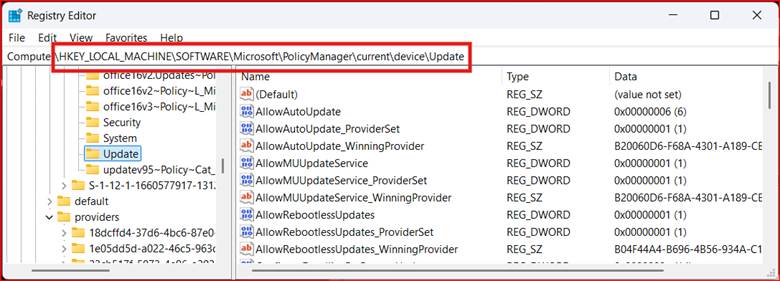
If you look closely at those registry locations, you’ll see that Autopatch does NOT write to the WSUS registry path. This will become important in a minute, bear with me.
Here’s the key difference between WSUS and Autopatch: Autopatch is a policy orchestration service that relies on the Windows Update service (WUA / Microsoft Update stack), not an update engine like WSUS that uses hard coded registry values. Autopatch policies you define decide what should happen; Windows Update is what actually does the updating.
3. The PolicyManager abstraction layer (what Windows actually enforces)
PolicyManager is the Windows-side abstraction layer that receives, stores, and enforces update-related policies delivered by management services like Intune and of course, Autopatch. PolicyManager consolidates update policy settings coming from all the different providers who have thrown their hat into the ring (Autopatch, WSUS, etc.) and does its best to prevent conflicts and enforce the “winning” provider’s wishes.
Here’s how it does that.
Step 1: What Autopatch Actually Deploys. Autopatch itself never touches the registry directly. Instead, when a device checks in, Intune uses the Policy CSP – Update values to create a policy configuration that shows up (via the CSP telling it to) at the PolicyState location in the registry.
Step 2: The new CSP values are then written to the Providers location (that weird <GUID> place). This stores the full raw policy settings which now become a candidate competing to enforce update settings on the device. In other words, this is what Autopatch is asking the device to do, but Windows has not decided on precedence and other sources (GPO, local policy, defaults) are still in play.
Step 3: Windows Compares All Policy Inputs. And I’m talking every possible policy authority from local policy (Configuration Manager) on comanaged devices, Group Policy (WSUS), and Autopatch.
This comparison logic is handled by the Windows Policy Engine, not Intune.
- WSUS keys are treated as authoritative legacy policy
- CSP values are considered modern authority
- Some WSUS settings are blocking policies (e.g. UseWUServer)
Step 4: PolicyManager\current Is the Winning Result. After evaluating all sources, Windows writes the effective policy state to:
HKLM\SOFTWARE\Microsoft\PolicyManager\current\device\Update
This location represents what Windows will actually enforce after arbitration between all the competing update providers has completed. So, if a setting exists in providers but not in current, it lost a precedence battle.
PolicyManager is not where Autopatch starts writing — it’s where Windows resolves policy after comparison. It’s a runtime policy aggregation location, not a bunch of hard coded registry values. Whether WSUS or Autopatch, when the settings affecting your device’s update behavior change, so too can the values in this location. Don’t believe me? Just delete the whole PolicyManager registry location and see what happens. Because that location is based on policy resolution outcomes, it’ll come back after a fashion as the device starts looking for updates.
WSUS Ghosts in the Machine: How Legacy Policy Overrides Autopatch
Now that you’re familiar with Ghidorah’s three heads of update policy management, this should all make sense to you:
- WSUS = Legacy registry
- Intune / Autopatch = Policy CSP – Update
- Windows Update behavior = whichever wins precedence
WSUS registry values break Autopatch even when CSPs are present. This is the single biggest thing to look out for when migrating from Configuration Manager to Autopatch.
Here’s some quick sanity checks for WSUS remnants:
To see what Autopatch requested check:
HKLM\SOFTWARE\Microsoft\PolicyManager\providers\<GUID>\device\Update
If you want to know what Windows accepted, check:
HKLM\SOFTWARE\Microsoft\PolicyManager\current\device\Update
Get-ItemProperty ` HKLM:\SOFTWARE\Microsoft\PolicyManager\current\device\UpdateIf the update behavior you’re seeing doesn’t match either check for:
HKLM\SOFTWARE\Policies\Microsoft\Windows\WindowsUpdate
Get-ItemProperty `
HKLM:\SOFTWARE\Policies\Microsoft\Windows\WindowsUpdate
If you see WUServer or UseWUServer=1, WSUS is still in charge. If you see no registry values there, that’s probably a good thing (for Autopatch anyway).
If CSP policy values exist but update behavior doesn’t match, you have policy contention, not misconfiguration.
Why? Because Autopatch preserves Group Policy precedence and those pesky WSUS registry values are tattooed in the registry. They remain even after the GPO that set them no longer applies and Intune does not clean them up. This forces Autopatch registered devices to continue pining for some long lost WSUS server on premises.
In this case, there’s nothing wrong with Autopatch—Windows is just ignoring it:
- Windows Update engine says WSUS is authoritative
- Feature update policies are ignored
- Autopatch health still looks good in Intune
- PolicyManager\current may be missing expected values
This is probably a good time to call out that while the Autopatch team has done, and is doing, a lot to improve reporting and in surfacing update alerts, there’s still a place for local device troubleshooting. Some other things you can leverage to sort out what’s going on:
- Windows Update logs (Get-WindowsUpdateLog)
- Event Viewer: Applications and Services Logs → Microsoft → Windows → WindowsUpdateClient → Operational
- My Get-AutopatchHealth PowerShell script
To close this out I’ll say it again: if you are seeing WSUS registry key values on your Autopatch devices, remove them. Consider targeting an Intune remediation at your All Autopatch Devices group to just clean all that legacy stuff up. After a reboot, PolicyManager will do its thing to evaluate the winning provider and you’ll be back in Autopatch’s good graces.
Final Takeaway
Most Windows Update issues in Intune environments are not policy design problems—they’re policy inheritance problems. If Autopatch ever feels wonky or just does nothing, check the registry first; it could be that Windows already made up its mind before Autopatch was heard. And remember:
- Autopatch suggests
- Intune delivers
- Windows decides
- PolicyManager records the verdict
At the end of all this, hopefully troubleshooting software update behavior is a bit less mysterious to you. Now that you know where update policies actually come from and how Windows enforces them, troubleshooting update issues should become more consistent, predictable, and much easier to explain.
Now go get Autopatch’y.
