If you’ve ever opened a Microsoft support case for an Intune issue, you’ve probably heard the dreaded phrase: “Can you collect Intune One Data Collector (ODC) logs?” The support engineer likely lowered their voice and approached the topic with the same caution someone uses when asking a friend to help them move. They know the challenge ahead, and a very real possibility that you’ll soon question every life choice that led you to this moment as you immediately think something like:
“Great… now I need to walk a random user through downloading a script, running it with admin permissions, finding the ZIP file, and then getting it back to me before the support case gets archived for non-response.”
I got tired of chasing users for logs, so I built a PowerShell script that automates the entire process using Intune Remediations. The script downloads Microsoft’s latest Intune ODC collector, runs it, grabs the resulting ZIP file, uploads it to a central share, logs everything, and cleans up after itself.
You might notice this is eerily similar to what I’ve done previously for collecting TSS logs.
The Challenge
When Microsoft asks for ODC logs, the typical process looks something like this:
- Send instructions to the user.
- Hope they have local admin rights.
- Hope they can follow the instructions.
- Hope they send the ZIP file back.
- Realize they sent the wrong file.
- Repeat.
For remote users, executives, kiosk devices, or large-scale incidents, that approach doesn’t scale very well.
I wanted something that would let me:
- Collect logs remotely
- Use the latest version of Microsoft’s collector
- Centralize all collected data
- Track execution results
- Eliminate user involvement whenever possible
What the Script Does
The script is designed to be deployed through Microsoft Intune Remediations and performs the following actions automatically:
- Generates a unique Run ID for tracking
- Downloads the latest Intune ODC files from Microsoft
- Executes the ODC collection process
- Locates the generated ZIP package
- Uploads the ZIP to a central file share
- Records execution results in the registry
- Creates CMTrace-compatible logs
- Removes temporary files when finished
Instead of scheduling meetings with users or sending detailed instructions, I can simply target the affected devices with a remediation and wait for the logs to show up in the repository. In other words, once it’s assigned through Intune, I don’t have to touch the endpoint. And then I have time to do stuff like write this blog.
It Always Downloads the Latest ODC Version
One thing I didn’t want to manage was keeping a packaged copy of the ODC collector up to date.
Instead, the script downloads the latest required files directly from Microsoft’s download endpoints every time it runs:
That means I’m always collecting diagnostics with the version Microsoft currently wants me using.
Centralizing Log Collection
One of the biggest wins is having all collected logs stored in one place.
The script uploads completed ZIP files to a UNC share that you define in the THINGS YOU NEED TO CHANGE section of the script (more on that in a minute). The upload process automatically creates device-specific folders and timestamps the files. Now when Microsoft asks for logs from a specific machine, I already know exactly where to find them.
Example:\\Server\Share\IntuneODC\PC-001 │ PC-001_20260804_101522.zip\\Server\Share\IntuneODC\PC-002 | PC-002_20260807_110932.zip
Yes. Yes, I know I should update the script to use Azure files. I’ll get to that someday.
CMTrace Logging Because Old Habits Die Hard
I’ve spent enough years working with Configuration Manager that CMTrace logs still feel like home.
The script writes all activity to a CMTrace-compatible log file, making troubleshooting much easier when something goes wrong.
Things you’ll see in the log:
- Download activity
- ODC version information
- Upload validation tests
- ZIP discovery
- Runtime details
- Errors and exceptions
- Cleanup operations
When troubleshooting a failed collection, I can quickly open the log and see exactly what happened.
Registry Tracking for Reporting
The script also writes execution details to the registry so I have a local record of the collection that I can view using Device Query or CMPivot without pulling diagnostics. You know, important stuff like:
- Run ID
- Script version
- Start time
- End time
- Runtime
- Exit code
This has been super useful for validating that log collection ran successfully and proving that the remediation actually executed on a target device.
Where to get the script
The easiest way to get the script is to pull it from the PowerShell Gallery.
Save-Script -Name Invoke-IntuneODC -Path C:\Temp\IntuneODC
If you’re just curious to see what I’m up to with the script outside of the PowerShell Gallery, you can find it on my GitHub repo (https://github.com/jeffgilb/Invoke-IntuneODC/blob/main/Invoke-IntuneODC.ps1).
Can I make this any easier on you? Sheesh.
Deployment Is Simple
The only section you need to customize is the configuration block. In the script, look for this section and configure it to do your bidding. It’s not necessary to modify any other parts of the script. Doing so will leave you in an unsupported state…which I guess you’re already in so do what you want I guess, but you don’t need to.
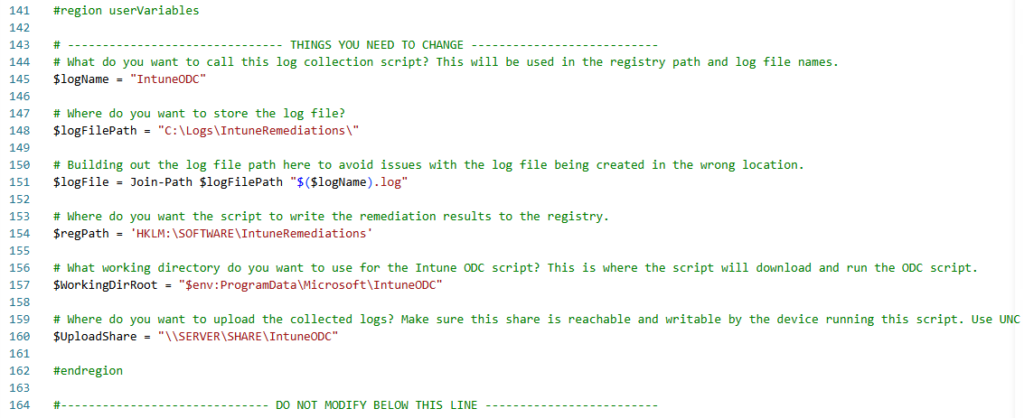
After that:
- Create a remediation package in Intune. Just use the script as a detection, you don’t need a remediation for this one.
- Upload the script after you’ve configured the THINGS YOU NEED TO CHANGE section.
- Trigger a Windows device remote task (Run remediation (preview)) to kick off the process
- Wait for the logs to appear in your repository 20-30 minutes later and then do with them what you will. They’re actually pretty handy for general device troubleshooting even without a support case. Tons of info in those logs.
- If the logs don’t show up, remotely query the registry values to be sure it ran on the device and then pull the actual log file if further troubleshooting is needed. It always works perfectly in my lab though, just sayin.
A Few Things to Keep in Mind
Before deploying this solution, make sure:
- Devices can reach Microsoft’s ODC download URLs.
- Devices can write to your upload share.
- You’ve tested access from remote users and VPN scenarios.
- The share has enough capacity for collected ZIP files.
Required CYA line: I also recommend testing with a small device group before rolling it out broadly.
Final Thoughts
As Intune administrators, we spend enough time troubleshooting device issues without having to become project managers for log collection.
This script has saved me a lot of back-and-forth with users and dramatically reduced the time it takes to gather diagnostic data for Microsoft support cases. Instead of explaining how to run a collector, I deploy a remediation, grab the ZIP from my centralized share, and move on to solving the actual problem.
If you’re regularly working Intune escalations, support tickets, or Microsoft cases, automating Intune ODC collection is one of those small improvements that quickly pays for itself in time saved.
You’ve seen my blog; want to follow me on socials? @JeffGilb Jeff Gilbert | LinkedIn
